Help & documentation
FAQ & user guide
Everything you need to get going with OpenTahr. Find your way around, add your keys, use each tool, connect your sites and understand plans and security. Looking for something specific? Use the search below.
01Getting started
What is OpenTahr, in one sentence?
OpenTahr is an AI workshop for web professionals, with twelve tools for SEO, content and websites that run on your own API keys. That model is called BYOK, short for bring your own key. Your keys stay in your browser, calls go straight to the AI providers and you pay them directly at their price, so OpenTahr sells no AI credits and never sees your prompts or the models' answers.
How do I create an account? Is it free?
Yes, the account is free. Click Create a free account at the top of the site, enter your email and a password, confirm that you are 18 or older, accept the terms and confirm the email you receive. You then land in the workshop. The Free plan gives you every tool except the auto-blog, with monthly quotas. You can move to Pro or Studio later without losing any of your data.
What does the workshop look like? How do I move between tools?
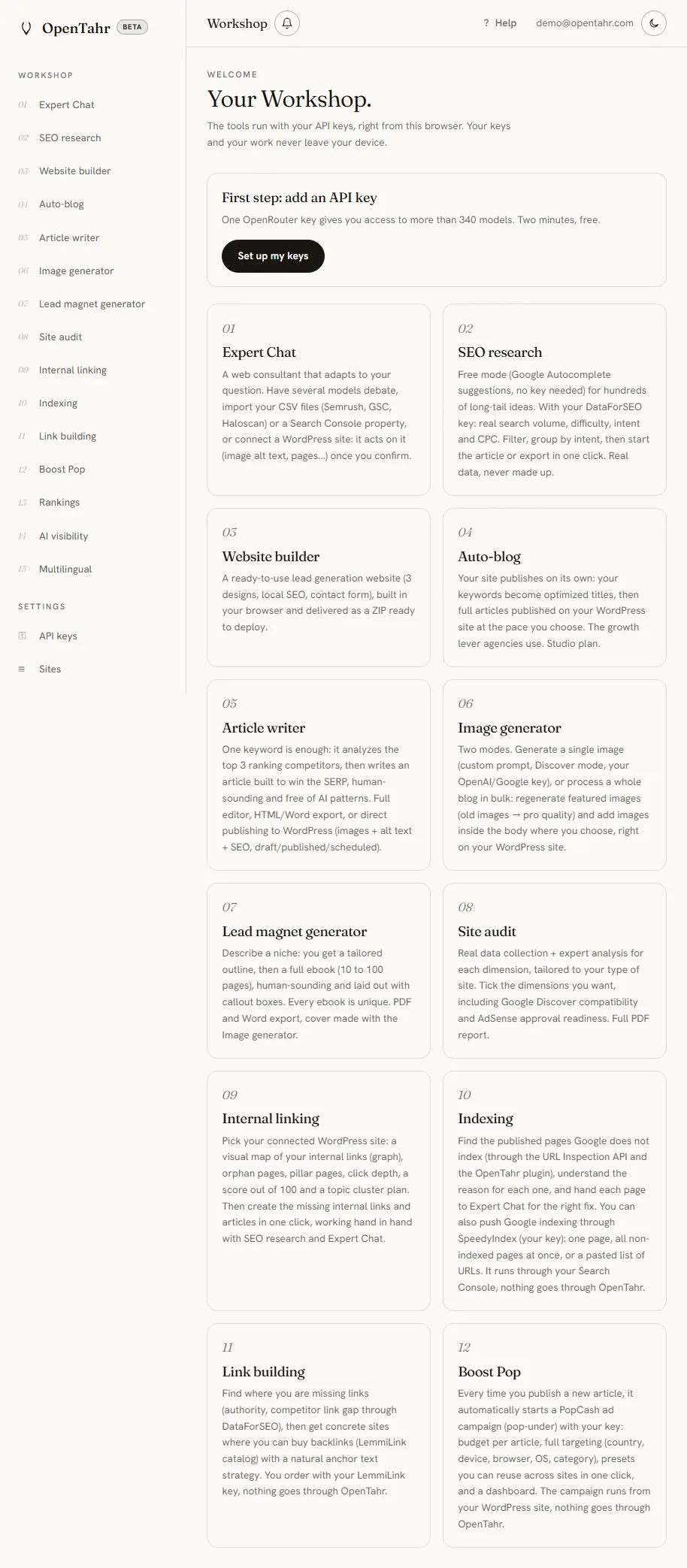
Once you log in, you are in the workshop at opentahr.com/app. A sidebar on the left lists two groups.
- The Workshop group holds the 12 tools, numbered 01 to 12.
- The Settings group holds API keys, Sites, Account and Subscription.
Click a tool to open it. On mobile, open the menu with the ☰ button at the top left. Switch between the light and dark theme with the sun and moon icon.
Where should I start as a beginner?
- Go to Settings → API keys and paste at least one key (see the API keys section).
- Open Expert Chat and ask your first SEO or marketing questions.
- Try the Article writer on a keyword to see a complete deliverable.
- If you have a site, connect it in Sites to publish directly.
02API keys
What is an API key and why do I need one?
An API key is a secret code issued by an AI provider such as OpenAI, Anthropic, Google or Mistral. It allows calls to that provider's models. With BYOK, you own the key and pay your provider for AI at the real price. OpenTahr runs the tools and never resells credits.
Where do I paste my keys in OpenTahr?
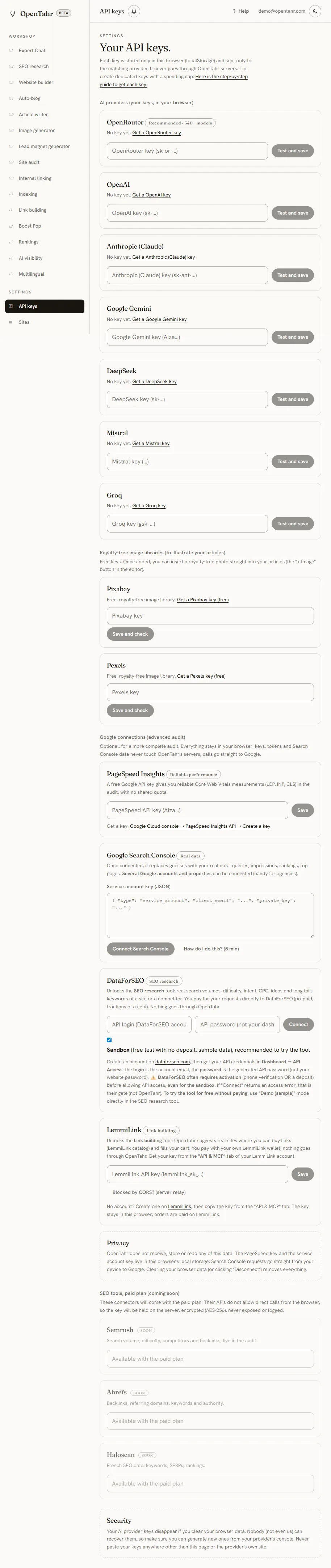
In the sidebar, open Settings → API keys. Paste each key next to its provider and save. As soon as a valid key is in place, the tools that need it switch on. You can add several keys, for example OpenAI for text and Google for images.
Where do I get an API key?
From the provider, in its developer dashboard. The Get your API keys page explains the steps for each service (create an account, generate a key, add a payment method with the provider). Keep the key somewhere safe, because most providers show it only once.
How much does it cost? How do I keep spending under control?
OpenTahr charges no AI credits. You only pay your provider for what you use, at the real rate. To keep costs down, pick models that fit the job (a lighter model for simple tasks) and set a spending limit with your provider when that option exists.
Can my keys leak through OpenTahr?
Not through our servers, because they never receive them. Your keys are stored in your browser and AI calls go from your browser to the provider directly. The remaining risks sit on your device, such as malware, a shared computer or a browser extension with wide permissions, so use dedicated keys with a spending cap. OpenTahr will never ask for your keys by email or message. Any such request would be a phishing attempt.
03The 12 tools
01 · Expert Chat, what is it for?
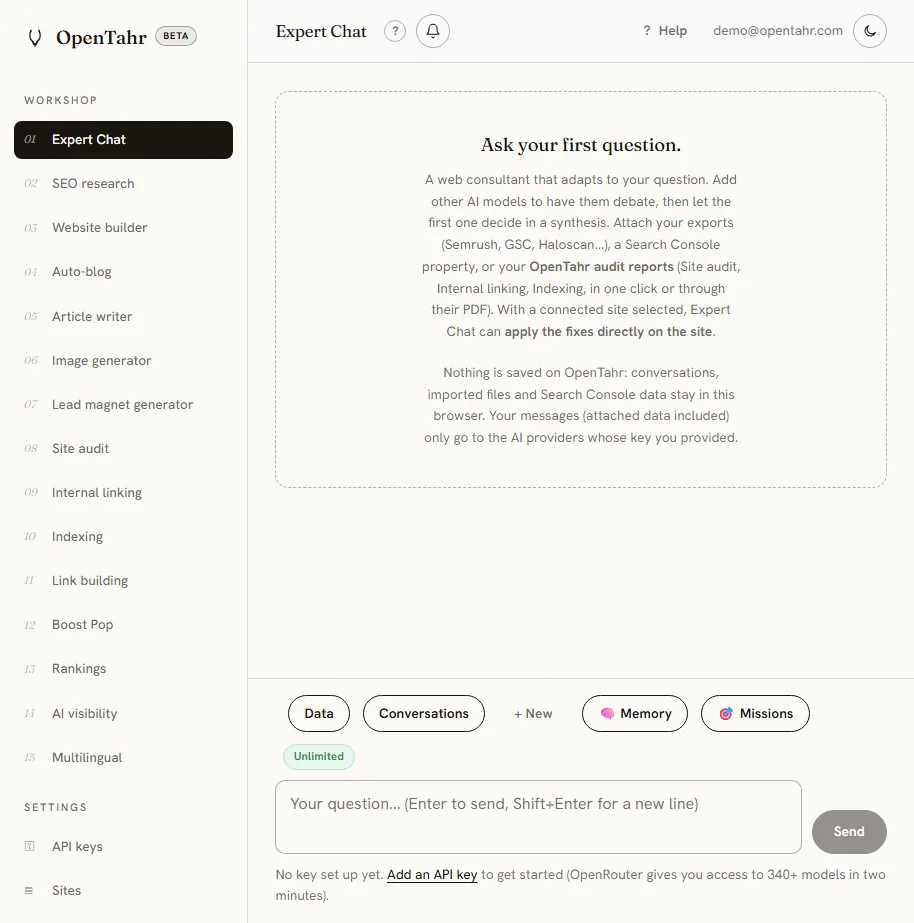
A multi-model web consultant covering SEO, content, technical issues, internal linking, Discover, AdSense, strategy and conversion. You can add several models so they debate and settle on a summary, import your CSV exports (Semrush, Search Console, Haloscan) or connect a Search Console property. When a site is connected, Expert Chat acts on it. It can read and fix articles, SEO meta, images, categories, tags and settings, or the files of a custom site.
02 · Site audit
A full SEO audit across every area (technical, performance, content, keywords, internal links, structured data and more), tailored to your type of site. You tick the areas you want, including two optional ones. Google Discover checks eligibility for the feed (image, max-image-preview, mobile, titles, E-E-A-T) and AdSense readiness checks trust pages, content value and policy compliance. Both appear in the same report and the same PDF. Enter the URL and the tool collects the pages, robots.txt, the sitemap and Core Web Vitals, then builds a scored report with an action plan that you can export to PDF.
03 · Auto-blog
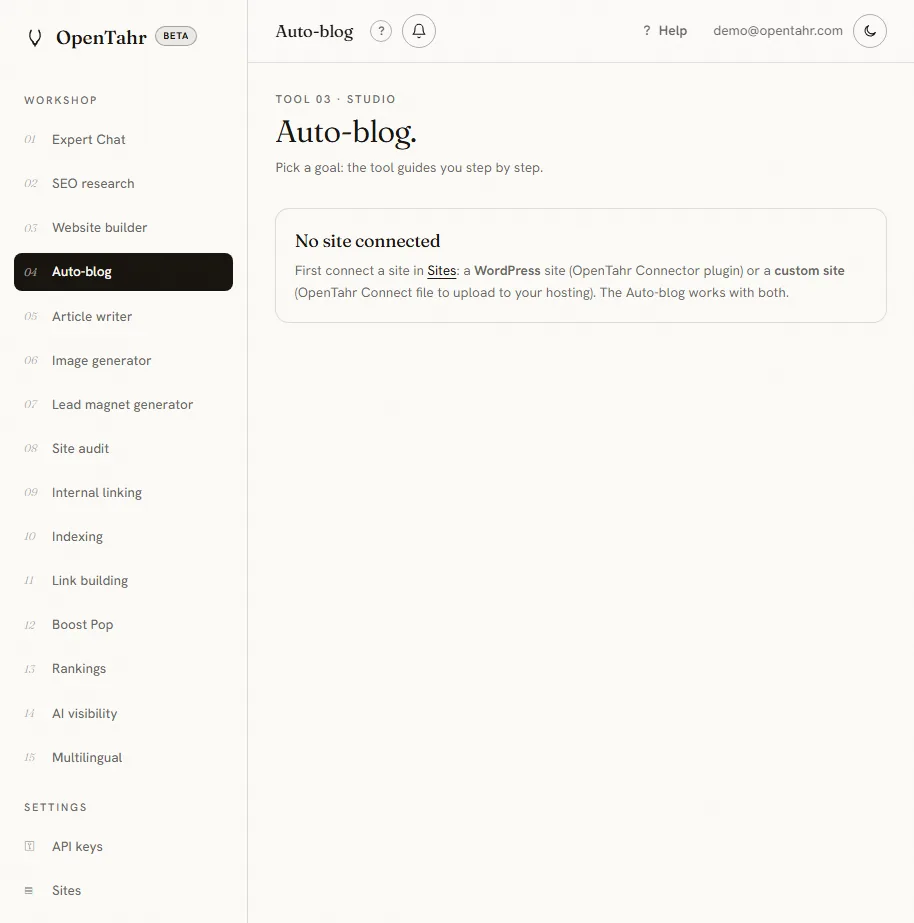
Your site publishes on its own. You enter keywords or have them generated, the AI suggests one SEO title per keyword, you approve them and pick a schedule. Each article is then written, illustrated and published automatically. The full details are in The auto-blog in detail. This tool is part of the Studio plan.
04 · Article writer
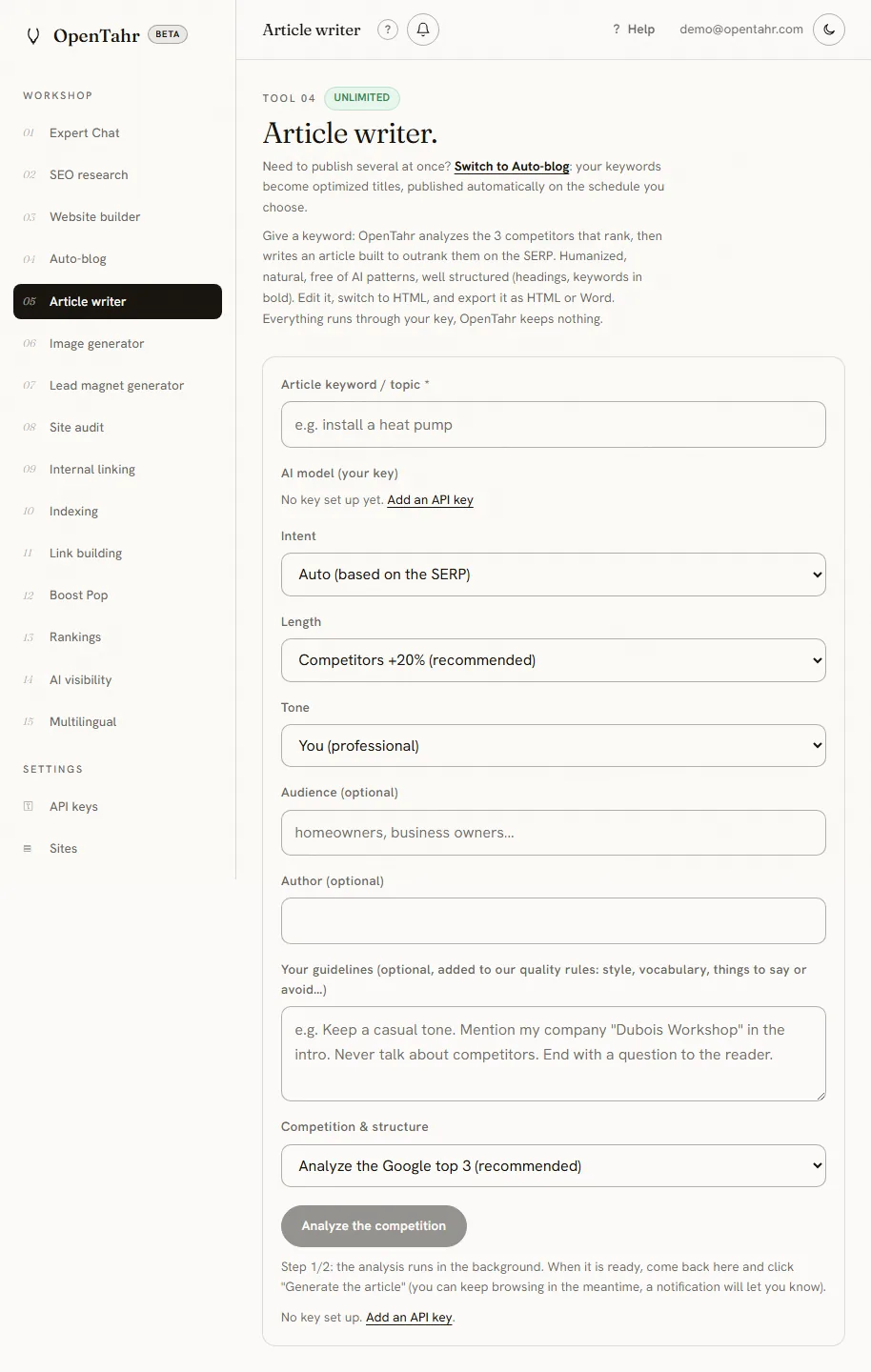
Enter a keyword. The tool studies the three pages that rank in the search results, then writes an article designed to cover the topic better than they do, in a natural voice with no AI tells. You get a built-in editor, an HTML view, HTML or Word export, or direct publishing to a connected site with featured image, alt text and SEO meta.
05 · Image generator
Create visuals such as article illustrations, featured images and ebook covers with your image key. Several sizes and quality levels are available, depending on the model.
06 · Website builder
Builds lead generation sites for local services, with real landing pages (offer and form), a clear navigation tree, local schema, legal pages and a ready-to-use contact form. The generated sites already include the OpenTahr Connect file, so you can manage them from the workshop afterwards.
07 · Lead magnet generator
Produces a lead magnet in PDF and DOCX from a topic, with its structure, content and cover. It is a good way to collect email addresses in exchange for a useful resource.
08 · SEO research
Real keyword data from the DataForSEO API. You add your DataForSEO credentials in API keys, calls go straight from your browser and nothing is stored at OpenTahr. You pay DataForSEO for your requests, which cost a fraction of a cent. There are five modes (keyword ideas, long tail, related searches, keywords of a site, keywords of a competitor). For each keyword you get the real volume, difficulty from 0 to 100, intent, CPC and the 12-month trend. You can filter, group by intent, export to CSV and press Write to open the Article writer with the keyword filled in. The data is real and never made up.
09 · Internal linking
Maps every internal link of your WordPress site as an interactive graph, showing orphan pages, pillar pages, click depth, a score out of 100 and a topic cluster plan. You can then create the missing internal links and articles in one click. It needs an up-to-date OpenTahr Connector plugin, and nothing passes through OpenTahr.
10 · Indexing
Finds the published pages Google does not index with the URL Inspection API of your Search Console and groups them by reason (crawled but not indexed, discovered but not indexed, duplicate, noindex, 404 and so on). Each page can go to Expert Chat, which reads its content through the plugin and suggests the lightest fix. That is often internal links and a manual indexing request rather than a rewrite. It needs Search Console connected (the service account must own the property) and the OpenTahr plugin, and nothing passes through OpenTahr.
The tool can also submit pages to SpeedyIndex. You add your SpeedyIndex key and pay SpeedyIndex per result. In one click you can send one non-indexed page, all of them at once, or a pasted list of URLs from any site. SpeedyIndex speeds up Google's crawl, which is not the same as a guarantee of indexing.
11 · Link building
Build the authority of your pages with relevant backlinks, ordered through your LemmiLink account without leaving the workshop. Choose the URLs to push, start your campaigns and follow their progress. You add your LemmiLink key in API keys and pay LemmiLink directly, so nothing passes through OpenTahr.
12 · Boost Pop
Starts a PopCash pop-under campaign automatically each time you publish an article. You set the targeting (country, device, browser, OS, traffic category) and the budget per article, save presets you can reuse across sites in one click and follow everything from a dashboard. You add your PopCash key, pay PopCash and the campaign starts from your WordPress server, so nothing passes through OpenTahr. Like any new ad, each campaign first goes through PopCash review, with the status submitted and then live.
A tool is locked or shows a Studio badge. Why?
The auto-blog is part of the Studio plan. On Free or Pro the tool stays visible, so you can see what it does and preview it, but switching it on requires Studio. All the other tools are available from the Free plan, with monthly quotas.
04Connecting a site
Why connect a site?
To publish straight from OpenTahr (articles, images, SEO meta), to let Expert Chat work on the site and to switch on the auto-blog. Everything goes from your browser to your site, and nothing passes through OpenTahr.
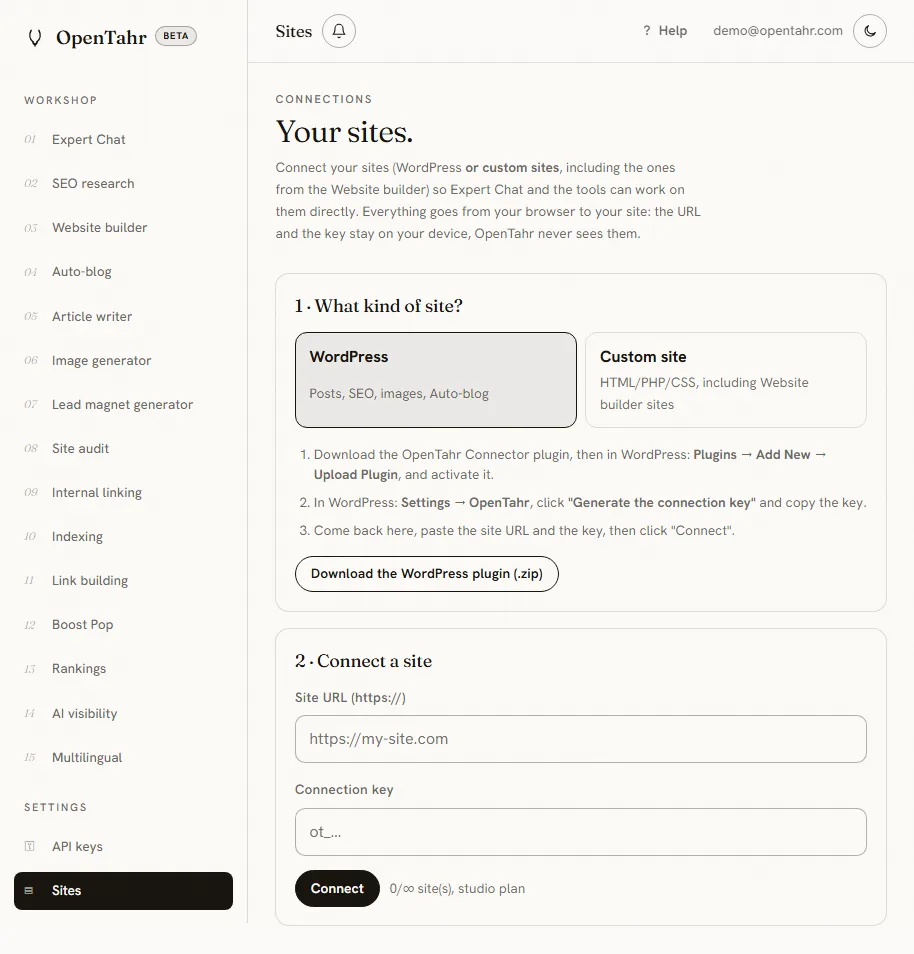
How do I connect a WordPress site?
- In Sites, download the OpenTahr Connector plugin and install it on your WordPress site.
- In Settings → OpenTahr in your WordPress dashboard, create a key.
- Back in OpenTahr, add the site (WordPress type) with its URL and the key.
How do I connect a site that is not WordPress (custom site)?
- In Sites, choose the Custom site type and download OpenTahr Connect, a single PHP file.
- Upload
opentahr-connect.phpto the root of your site with FTP or your host's file manager. - Open
https://your-site/opentahr-connect.phpin your browser and click to create the key. - Paste the site URL and the key into OpenTahr (Custom site type).
You need PHP hosting (o2switch, OVH, Ionos, Hostinger and the like). It does not work on purely static hosting without PHP, such as Netlify. Sites made with the Website builder already include this connector.
How many sites can I connect?
One site on Free, 5 on Pro and unlimited on Studio. The limit applies to the total number of connected sites, WordPress and custom sites together.
Is it risky to put this file on my site?
The connector is built with security in mind. The key is stored hashed, HTTPS is required, access is limited to the opentahr.com domain and a path jail stops it from leaving the site folder. Only allowed file types can be written and an automatic backup runs before every write. Any AI key stored for the auto-blog is encrypted. You can delete the file at any time to cut access.
05The auto-blog in detail
How does the auto-blog work?
- Choose the site, the AI model and the schedule (one article every X days).
- Enter your keywords, or generate them from your niche.
- The AI suggests one SEO title per keyword and you approve the title queue.
- Switch it on. Each article is written, illustrated and published automatically.
The queue and your encrypted AI key live on your site, never at OpenTahr. This tool is part of the Studio plan.
Can I publish to /news, /journal or another folder than /blog?
Yes. On a custom site, the Blog folder field is set to blog by default, but you can enter news, journal, updates and so on (letters, numbers and hyphens). The system does three things.
- It creates the folder if it does not exist.
- It writes each article inside it, for example
/news/my-article.html. - It keeps an
index.htmlin that folder up to date, between its markers.
If an index.html already exists with a very custom layout, the list is inserted cleanly before </body> without breaking anything, and a backup is made before writing. For a custom design, ask Expert Chat to adapt the template.
Why does a custom site need a cron job?
WordPress has a built-in scheduler called WP-Cron. A custom site does not. For it to publish on its own with your browser closed, you need a cron job with your web host. It is a simple automatic call, once a day, that tells the site to publish the next article if it is time. OpenTahr gives you the address to call and a step-by-step guide for o2switch, OVH and Hostinger. Without a cron job nothing publishes automatically, but the Publish the next one now button is always there.
How do I add the cron job at o2switch, OVH or Hostinger?
The app shows the exact address to copy (unique to your site, keep it secret) and the command. In short, here is where to go.
- o2switch. cPanel → Cron Jobs → frequency Once a day → paste the
curlcommand. - OVH. Control panel → Hosting → Scheduled tasks (CRON) → Add → language Other → the command, daily frequency.
- Hostinger. hPanel → Advanced → Cron Jobs → daily interval → the command.
- Another host. Look for Cron in the control panel and set it to once a day, or ask support to run the command daily.
We recommend running it once a day. The engine only publishes when the schedule you chose is reached.
06Plans & quotas
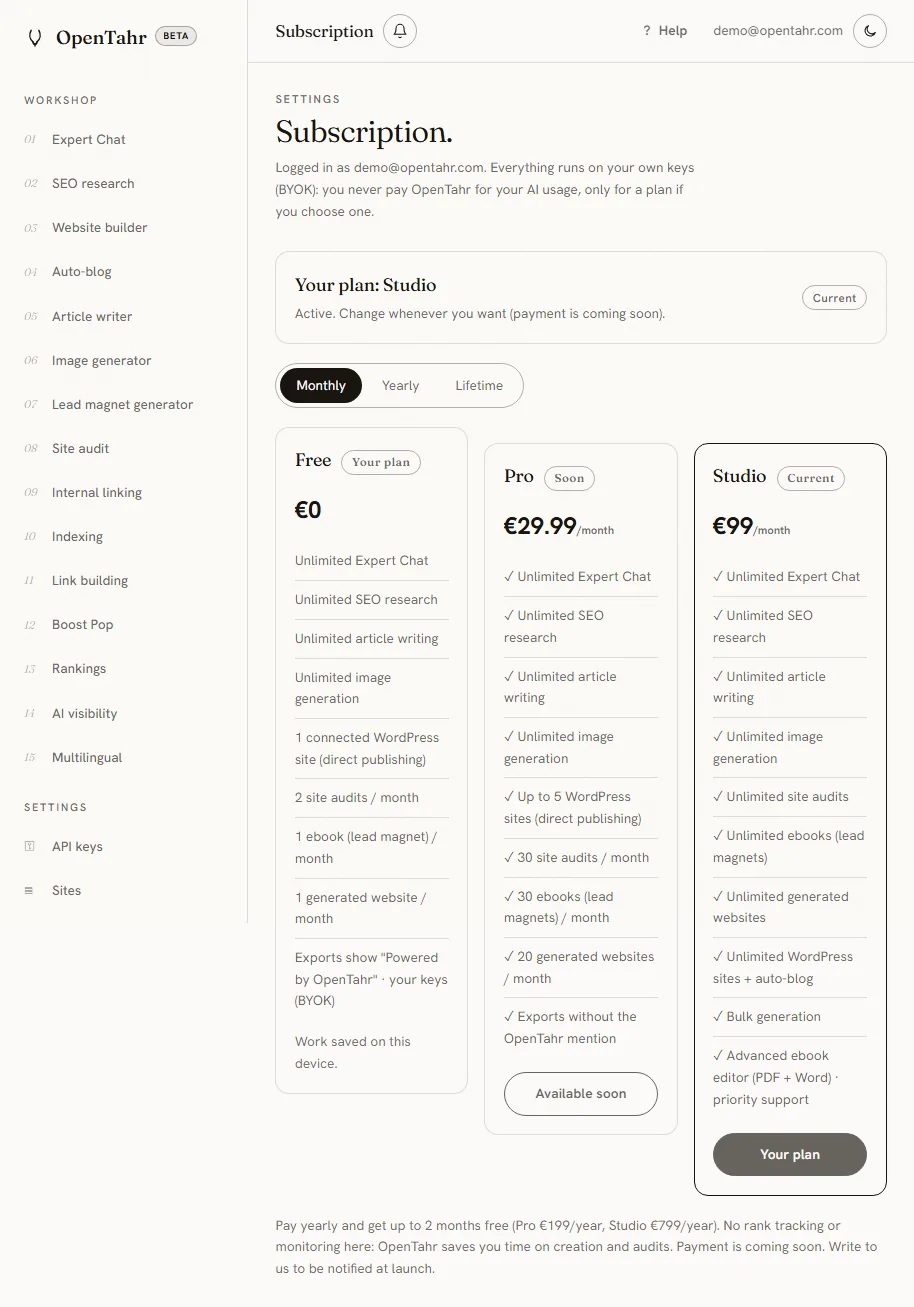
What plans are there?
| Plan | Price | Who it's for |
|---|---|---|
| Free | €0 | Try every tool with monthly quotas, 1 site. |
| Pro | €29.99/month, €199/year (save 45%) or €599 lifetime | Much higher quotas, exports without the OpenTahr credit, up to 5 sites. |
| Studio | €99/month, €799/year (save 33%) or €1,499 lifetime | Everything unlimited, unlimited sites, auto-blog, bulk generation. |
Pro and Studio are not on sale yet. During the public beta every account is free. The prices above are the ones planned for launch.
How do quotas work? When do they reset?
Each tool has a monthly quota that depends on your plan, and each tool page shows how much you have left. The counters reset on the 1st of the month (UTC). On Studio, everything is unlimited.
What does yearly billing change?
Paying yearly costs less, with 45% off Pro (€199/year) and 33% off Studio (€799/year) compared with monthly billing. The monthly or yearly switch is on the Subscription page, with the saving shown.
07Security & privacy
What does OpenTahr store on its servers?
Only what the account needs. That means your email, your password (stored as a one-way hash), your plan, your quota counters and the messages you send to support from the app. Your API keys, the content of your conversations and your files are never stored there, because they stay in your browser. The privacy policy lists every piece of data and how long it is kept.
How does my data travel when I use a tool?
It goes from your browser straight to the AI provider (with your key), or to your connected site (with the connector key). OpenTahr runs the interface and stays out of those exchanges. Two features are the exception, because browsers cannot call these services directly. The site audit asks our server to fetch the public page you want to analyze. The free keyword suggestions relay the keyword you type to Google's autocomplete. Neither one is stored.
How do I make a privacy request (GDPR, UK GDPR and other laws)?
Write to contact@opentahr.com from the email address of your account, with Privacy request in the subject line. You can ask for access, correction, deletion or a copy of your data, wherever you live. You get an answer within one month. You can also delete the account from the app settings. The details are in the privacy policy.
08Troubleshooting
Invalid connection key, or site unreachable
- Check the site URL (with
https://) and that the SSL certificate is active. - On WordPress, the key comes from Settings → OpenTahr on the site and the plugin must be active.
- On a custom site,
opentahr-connect.phpmust sit at the root and the key must have been created by opening it in the browser. - Create a new key if needed. On a custom site, delete the
.opentahr-connect.jsonfile over FTP, then open the page again.
The auto-blog does not publish on its own
- On a custom site, did you add the cron job? Without it nothing is automatic, so use Publish the next one now.
- Check that the auto-blog is on and that titles are left in the queue.
- If the app reports that
curlis disabled on your server, ask your host to enable the PHP cURL extension, which AI generation relies on.
A tool won't run or stays grayed out
- Do you have a valid API key for the provider it needs (Settings → API keys)?
- Have you used up your quota for the month? The count is shown on the tool page.
- The auto-blog needs the Studio plan.
I can't find my answer
Use the search at the top of this page and type a word such as cron, quota or API key. If nothing matches, write to us through the Contact page and tell us which tool you were using, your browser and the error message you saw.
This page grows with the product. Is something missing? Tell us.